I am a certified project management professional (PMP) with more than 20 years of experience. Much of that time has gone into managing various social projects in development. Across all those projects, one problem kept showing up: too many tools, too little order.
Teams often use one app for chat, another for files, and a third for tasks. Project information ends up spread across five or six places. Nobody can find what they need, and deadlines slip.
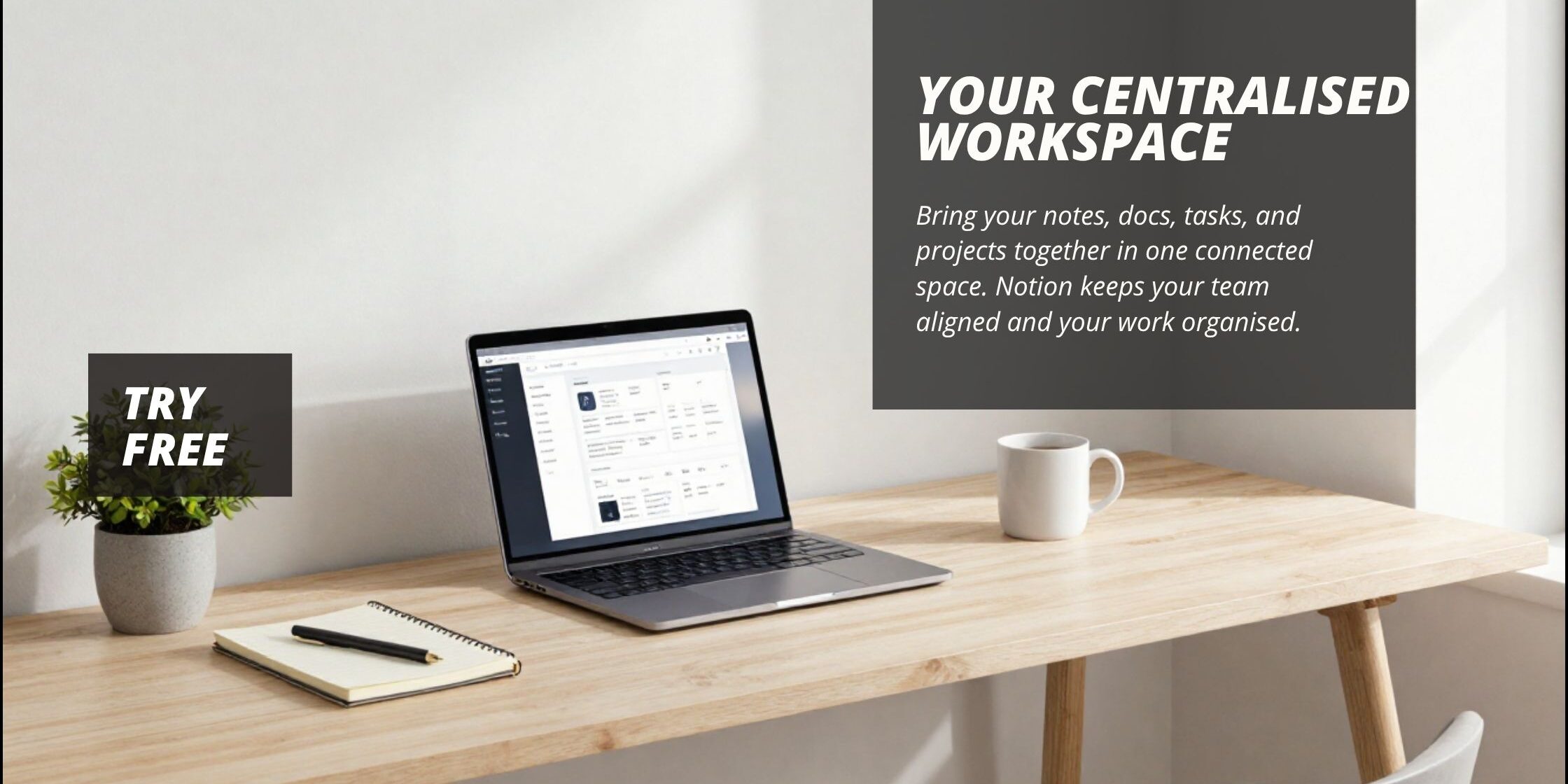
Notion project management fixes this. It brings your tasks, documents, and team chat into one centralised workspace. This guide shows you why centralised workspaces work, how to set one up in Notion, and how real teams use it to get more done.
Why a Centralised Workspace Matters for Project Management
The Trouble with Scattered Tools
Most teams juggle several apps at once. Chat lives in Slack, files sit in Google Drive, and tasks get tracked in Trello. Each switch between apps breaks focus and wastes time.
This setup causes real problems.
- Messages get lost between chat and email.
- Time slips away every time someone switches apps.
- No one has a single view of how the whole project is doing.
- New team members struggle to find where things live.
I have used productivity apps across dozens of projects, and scattered tools are the single biggest drag on a team’s pace.
The Benefits of a Centralised Workspace
A centralised workspace solves this by giving everyone one place to work. The gains are clear.
- Less time lost switching between apps.
- One home for every file, task, and note.
- Real-time updates that keep everyone in the loop.
- Faster decisions, because the full picture sits in one place.
Teams that switch to a centralised workspace often report a productivity boost of up to 30%. That gain comes from cutting the small daily costs of app-switching, not from any single big change.
What Makes Notion the Ideal Centralised Workspace
One Platform for Everything
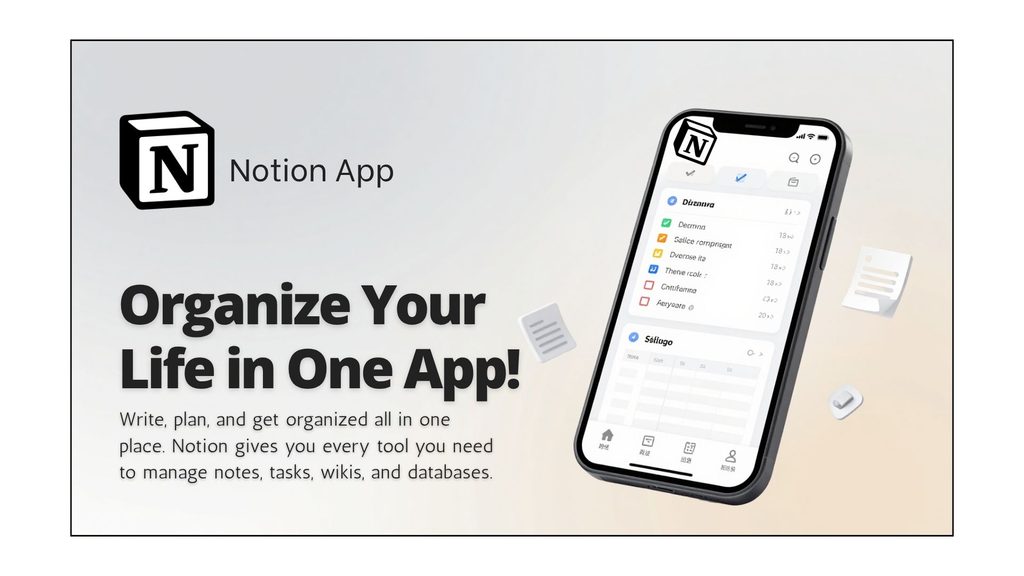
Notion combines task management, document storage, and team chat in a single tool. You can write a project brief, build a task board, and leave a comment for a teammate, all without leaving the page.
Built to Fit Your Workflow
No two teams work the same way, so Notion lets you shape it around your own process.
- Ready-made templates for common workflows.
- Layout options including boards, tables, and calendars.
- Databases that adjust as your project grows.
Easy to Learn, Easy to Use
Notion uses simple drag-and-drop actions, so most people pick it up within a day. It works the same way on desktop, tablet, and phone, so your team stays in sync wherever they are.
Connects with the Tools You Already Use
Notion links up with Slack, Google Drive, and Trello, so you are not forced to give up every other tool on day one. Its API also lets developers build custom connections for less common setups.
Notion’s Core Features for Project Management
Task Management and To-Do Lists
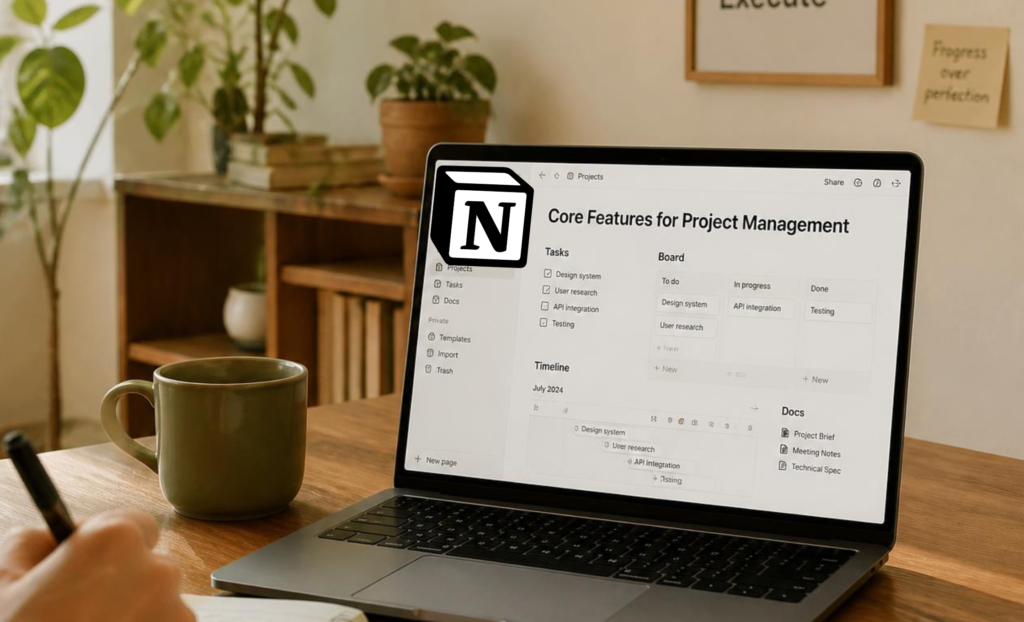
Set up kanban boards to see task status at a glance, or keep things simple with a plain to-do list. Assign each task to a person and give it a deadline, so nothing falls through the cracks.
Flexible Databases
Notion’s databases sit at the heart of the tool. You can view the same data as a table, gallery, calendar, or list, and switch between views in one click. Link databases together so a task automatically shows which project and client it belongs to. Filter and sort by status, owner, or due date to find what matters fast.
Document Storage and Teamwork
Store every project document in one place, instead of scattered across email threads and shared drives. Team members can edit pages together in real time, leave comments, and tag colleagues with an @ mention to pull them into a discussion.
Timelines and Calendars
Lay out your project on a timeline to see how tasks connect and where the risks sit. Sync deadlines to a calendar view, and share that calendar so the whole team can plan around it.
Automations and Recurring Work
Notion can handle repeat work for you. Set a task to repeat weekly, or use a database formula to flag overdue items automatically. This cuts down on manual admin and keeps your workspace tidy without extra effort.
How to Build a Centralised Workspace in Notion
Step 1: Set Up Your Workspace
Create a new workspace, invite your team, and assign each person a role. Set permissions early, so people only see and edit what they need to.
Step 2: Organise the Structure
Build a master dashboard as your team’s home page. Under it, organise pages by project or department, and set up databases for tasks, documents, and contacts.
Step 3: Add Task Management
Build a task board sorted by status: to do, in progress, and done. Assign tasks to owners and use filters to track progress at a glance.
Step 4: Bring in Documents and Collaboration
Set up a shared page for every key document. Turn on comments so the team can give feedback directly on the page, instead of over email.
Step 5: Track Progress with Timelines
Add a timeline view to show how tasks connect over time. Sync it with a calendar and link milestones to the tasks that drive them.
Step 6: Customise as You Go
Use templates to speed up repeat work, adjust views to match how your team thinks, and add a splash of your own branding to make the workspace feel like home.
Real Results: How Teams Use Notion
A Tech Startup Speeds Up Product Development
One product team moved every task, document, and note into a single Notion workspace. The result was a 25% rise in productivity, driven by tighter task tracking and faster document sharing.
A Marketing Team Plans Campaigns Faster
A marketing team built a shared campaign calendar and task board in Notion. Campaign launches sped up, and coordination between writers, designers, and managers improved by 30%.
A Remote Team Bridges Time Zones
A team spread across several time zones used Notion as a shared hub. Written updates and shared documents let people contribute on their own schedule, without waiting for a live meeting.
Notion vs Trello vs Asana: Which Should You Choose?
All three tools handle tasks well, but they differ in scope.
- Trello works best for simple, visual boards with light task tracking.
- Asana suits teams that want strong task assignment and deadline tracking, without much document work.
- Notion goes further by combining tasks, documents, notes, and databases in one centralised workspace.
If your team only needs a task board, Trello or Asana may be enough. If you want one tool for documents, notes, and tasks together, Notion is the stronger fit. You can browse ready-made Notion templates for project management to see how other teams have set theirs up.
Best Practices for Getting the Most from Notion
Review Your Workspace Regularly
Set a fixed time each week to check your workspace. Remove old pages, update task status, and keep the structure clean.
Use Templates and Integrations
Start from a template instead of a blank page. Connect the tools your team already relies on, and automate the small, repeat tasks that eat up time. Notion’s official guides are a good place to find both.
Shape the Workflow Around Your Team
Ask your team what works and what does not. Adjust views and layouts based on their feedback, and keep improving the setup over time.
Train Your Team Properly
Run a short training session when you roll out a new workspace. Share tips as people find them, and give the team room to try new views and features on their own.
For more on how task batching boosts your efficiency, pair that method with your new Notion setup for an even bigger time saving.
Common Challenges When Setting Up a Notion Workspace

Feeling Overwhelmed at the Start
Do not try to build everything on day one. Start with the basics, use a template, and add complexity only once the team is comfortable.
Getting the Team to Adopt It
Some team members will resist a new tool. Offer clear training, show the time it saves, and use the workspace yourself so others follow your lead.
Keeping It Organised Over Time
Set clear rules for how pages and databases should be named and filed. Give each section an owner, and check the structure every month or two.
Frequently Asked Questions
What is a centralised workspace in project management?
A centralised workspace is one place where a team keeps its tasks, documents, and communication. It replaces separate apps for chat, files, and task tracking.
Is Notion good for project management?
Yes. Notion combines task boards, databases, documents, and team notes in one tool, which makes it a strong fit for teams that want to cut down on app-switching.
Is Notion free to use for project management?
Notion offers a free plan that covers most of what a small team needs. Larger teams may need a paid plan for extra storage and admin controls.
What is the difference between Notion and Trello?
Trello focuses on visual task boards. Notion covers task boards as well as documents, notes, and databases, so it suits teams that want a fuller centralised workspace.
Can remote teams use Notion for project management?
Yes. Notion works well for remote teams, since updates sync in real time and team members can contribute from any time zone.
Final Thoughts
A centralised workspace changes how a team works. It cuts wasted time, keeps everyone on the same page, and makes projects easier to track from start to finish. Notion project management brings tasks, documents, and teamwork into one place, so your team spends less time searching and more time doing the work.
Join Notion today and start building your own centralised workspace.
About the author: I write about productivity and project management at gmkayange.me. If you found this useful, subscribe to my YouTube channel for more tips, or check out my Monthly & Weekly Planner and Daily Journal to plan your projects offline too.
Sign up for Notion now, and get your projects organised for good.
Disclosure: this article contains affiliate links. If you sign up through them, I may earn a small commission at no extra cost to you.